
Product map
Learn what each Reticuli area is for and when users should open it.
Reticuli is organized around projects. A project is one assistant with its own goal, sources, examples, tests, deployment settings, and run history.
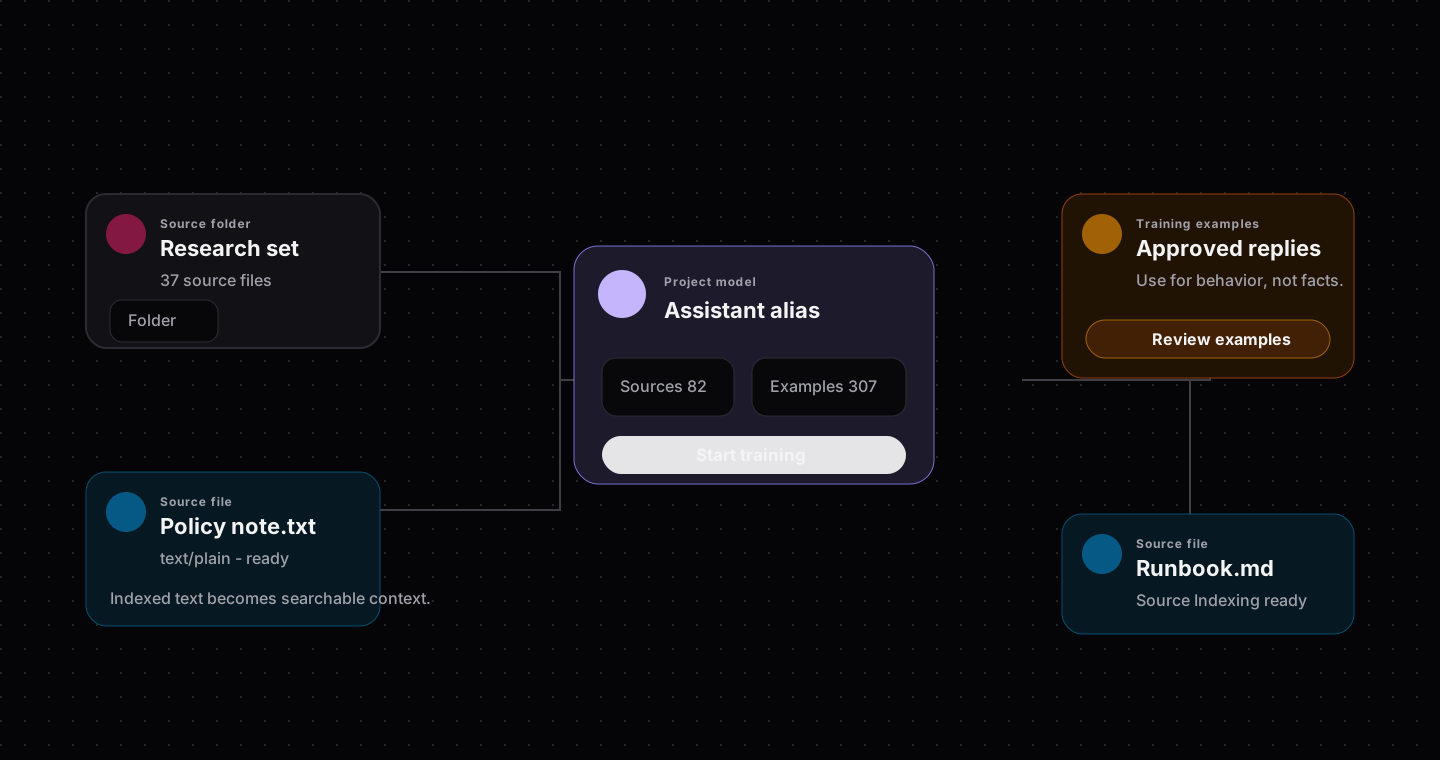
The canvas shows how source folders, indexed files, training examples, and the project model connect.
Main areas
| Area | What it is for | Open it when |
|---|---|---|
| Agent | Ask workspace-level questions and get help moving through the product | You are unsure what to do next |
| Projects | View and manage assistant projects | You want to create, open, archive, or restore assistants |
| Templates | Save reusable defaults for new projects | Your team creates similar assistants repeatedly |
| Settings | Manage workspace, usage, billing, organization, and project lists | You need account or workspace control |
| Help | Read support material or contact the team | You need product guidance |
Project areas
| Project tab | What it controls |
|---|---|
| Overview | Readiness, recommended next steps, integrations, and recent activity |
| Assistant | Goal, audience, prompt, behavior, and model defaults |
| Data | Files, URLs, notes, examples, and source material |
| Fine-tune | Training settings and fine-tune runs |
| Knowledge | Retrieval settings and embedding model configuration |
| Playground | Test the assistant before launch |
| Deploy | Publish the assistant and manage API keys |
| Runs | Review fine-tune, indexing, testing, and deployment activity |
| Settings | Archive, restore, delete, and update project-level defaults |
The simple navigation rule
If you need to teach facts, go to Data and Knowledge.
If you need to teach style or judgment, go to Data and Fine-tune.
If you need to prove the assistant works, go to Playground.
If you need other systems to use it, go to Deploy.
Common routes
| Goal | Route |
|---|---|
| Add files or folders | Project -> Data -> Add files |
| Check indexing | Project -> Data or Runs |
| Review generated examples | Project -> Data -> Training examples |
| Run or compare fine-tune | Project -> Fine-tune |
| Test launch quality | Project -> Playground |
| Create integration key | Project -> Deploy |
| Check workspace limits | Settings -> Usage |